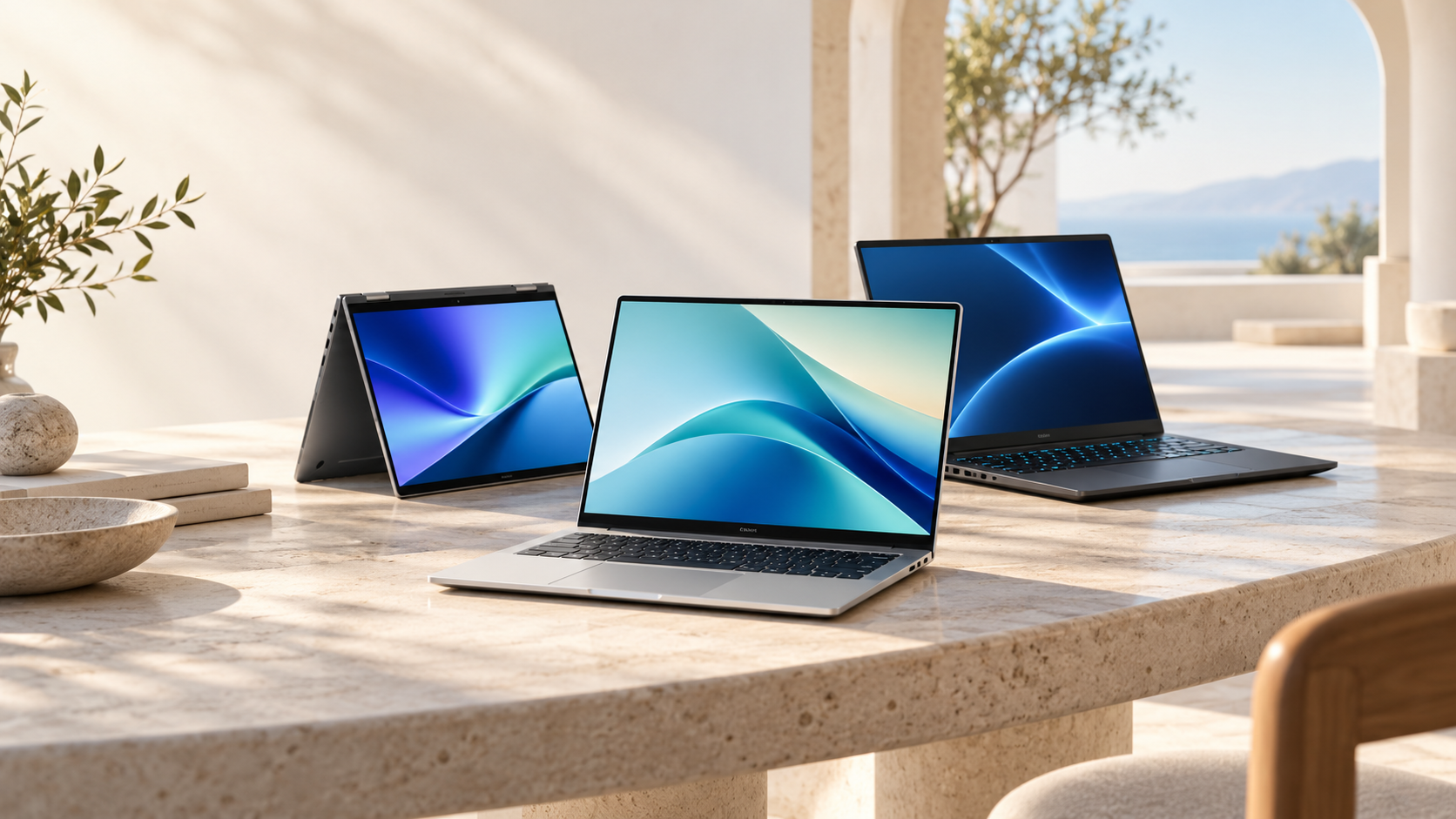
The best laptop for most everyday buyers on this shortlist is the MacBook Air 13-inch with M5, provided their essential software works on macOS. For a premium Windows alternative, start with the Dell XPS 14. Gamers should compare the ASUS ROG Zephyrus G14, while buyers who care about repairability should look at the Framework Laptop 13.
Those are starting points, not universal answers. The right notebook for a student carrying it between classes may be a poor choice for an architect, a video editor or someone replacing a desktop gaming PC. A good purchase matches your applications, budget and working habits before it chases the newest processor.
This guide to the best laptops for 2026 compares nine options by purpose, explains which configurations deserve your attention, and answers the questions that matter before checkout. It also covers affordable alternatives, memory, battery life, Windows on Arm, screen quality and refurbished machines.
Research updated: October 14, 2026. Selection method: manufacturer specifications, published independent buying guides and editorial assessment of suitability. These are research-based recommendations, not hands-on test results from this publication. Specifications and availability vary by country and configuration.
What are the best laptops to buy in 2026?
The table below provides a practical shortlist. “Best” means the strongest fit for the stated use case within this guide, rather than a claim that one machine beats every rival. Suggested configurations are buying advice; confirm that your local seller offers them.
| Laptop | Recommended for | Configuration to consider | Main trade-off |
|---|---|---|---|
| MacBook Air 13-inch M5 | Everyday work and study on macOS | 16GB memory, 512GB SSD | Limited built-in port variety |
| Dell XPS 14 DA14260 | Premium Windows productivity | 16GB or 32GB; compare display options | Configuration upgrades can raise the price sharply |
| MacBook Neo | Light tasks on a lower Mac budget | 8GB; choose storage carefully | Less memory headroom |
| Acer Swift 16 AI SF16-71T | Spreadsheets and a roomy workspace | Reviewed specification here: 32GB/1TB | Larger footprint |
| ThinkPad X1 Carbon Gen 14 Aura Edition | Business travel and managed workplaces | Match the exact SKU to your IT requirements | Premium business positioning |
| ROG Zephyrus G14 GU405 | Gaming in a compact laptop | Choose GPU for your games; consider 32GB RAM | Compact size does not guarantee low noise |
| MacBook Pro with M5 Pro | Demanding macOS creative workflows | 24GB or more, depending on project size | Unnecessary expense for basic office work |
| ASUS Zenbook DUO UX8407 | Two-screen work away from a desk | Consider 32GB for heavy multitasking | More complicated portable setup |
| Framework Laptop 13, Ryzen AI 300 | Repairability and upgrades | Price the complete build, including ports and OS | DIY headline price may omit essentials |
How were these laptops selected?
We prioritized a clear reason to buy each machine: portability, software fit, screen space, dedicated graphics, serviceability or a lower entry cost. A recommendation also needs a reason to skip it. That matters more than filling a list with nine versions of the same premium ultraportable.
Independent guides provide useful context, but their winners differ because their tested configurations and priorities differ. PCWorld, Tom’s Guide and TechRadar are useful places to compare their testing with the manufacturer details linked below. No benchmark scores or battery results from those publications are presented here as our own.
Prices are deliberately not treated as permanent specifications. Compare an identical processor, memory capacity, display, storage size and warranty before deciding which retailer has the better offer. A cheaper listing for the same laptop name may describe a substantially different machine.
1. Is the MacBook Air M5 the best laptop for everyday use?
Our pick for everyday macOS users: MacBook Air 13-inch with M5. Apple lists a 13.6-inch IPS display, a 16GB/512GB entry configuration, and two Thunderbolt 4 ports alongside MagSafe charging. Those specifications make it a sensible starting point for writing, research, online meetings and general home computing. See Apple’s MacBook Air specifications.
Pros: a compact screen size for regular travel, useful base memory and storage, and USB-C docking through Thunderbolt. Cons: no built-in HDMI or USB-A in the listed port selection; specialized software may require a different operating system.
Buying advice: start with the base configuration, then consider 24GB or 32GB if you routinely keep large projects and many applications open. Do not buy extra processor capability simply because the checkout page offers it. Check your actual software needs first.
Choose it if: portability matters and your work fits macOS. Skip it if: Windows-only applications, a particular game library or extensive built-in connectivity are essential.
2. Which premium Windows laptop should you shortlist?
Our pick: Dell XPS 14, model DA14260. Dell’s 2026 configuration page lists Intel Core Ultra Series 3 options and different memory and display choices. A separately listed configuration includes a 14-inch 1920 × 1200 non-touch display with a variable refresh rate up to 120Hz. Check the Dell configurator and the specific display configuration.
Pros: a compact Windows work format and multiple configuration choices. Cons: the XPS name alone does not identify the panel or processor; premium upgrades may be poor value for ordinary documents and web applications.
Buying advice: compare a sensible memory configuration before paying for the highest processor tier. If your workflow is mostly email, spreadsheets and browser software, decide whether the display upgrade actually improves your day.
Choose it if: you want a premium Windows notebook for regular office work and travel. Skip it if: your priority is the cheapest competent Windows computer or dedicated gaming graphics.
3. What is the lower-cost MacBook option?
Our pick for light Mac workloads: MacBook Neo. Its official specifications list an A18 Pro chip, 8GB of unified memory, a 13-inch IPS display, and 256GB or 512GB storage. The two USB-C ports have different capabilities, so check which port supports the connection you need. Read Apple’s MacBook Neo specifications.
Pros: a straightforward option for buyers who want macOS for light everyday tasks. Cons: 8GB provides less room for demanding multitasking; connectivity is more limited than on higher-tier Macs.
Buying advice: compare the final price against a discounted MacBook Air with 16GB. A cheaper entry point is attractive only if the memory and storage suit the work you expect to do.
Choose it if: you mostly write, browse, study online and handle modest documents. Skip it if: you plan to run several virtual machines, large creative projects or memory-intensive professional software. Treat “budget Mac” as a use-case recommendation, not a promise that it is the cheapest laptop in every country.
4. Which laptop is best for a large productivity workspace?
Our pick: Acer Swift 16 AI SF16-71T. The specific US SKU SF16-71T-73P1 lists an Intel Core Ultra X7 358H, 32GB memory, a 1TB SSD, and a 16-inch 2880 × 1800 OLED touchscreen running at 120Hz. Other regional configurations can differ. See Acer’s exact SKU specifications.
Pros: a generous display area and a configuration with substantial memory and storage. Cons: a 16-inch body needs more bag and desk space; an OLED panel is not automatically the best choice for every working environment.
Buying advice: this is worth comparing if you spend hours moving between documents, spreadsheets and reference material. If you usually connect to a large monitor, a smaller notebook may serve you equally well.
Choose it if: you want room to work without always bringing an external display. Skip it if: your main priority is fitting a small tray table or minimizing your daily carry.
5. What is a good business laptop for frequent travel?
Our pick: Lenovo ThinkPad X1 Carbon Gen 14 Aura Edition. Lenovo’s datasheet describes a 14-inch business platform with Intel Core Ultra Series 3 options and a starting weight below 1kg. Configuration-dependent business features make the exact product number important. Read the official Lenovo datasheet.
Pros: a lightweight business-focused design and configuration choices for workplace needs. Cons: business positioning does not guarantee the best consumer price or the same features on every SKU.
Buying advice: ask IT to confirm VPN, authentication, docking and management requirements before ordering. Compare warranty coverage and repair turnaround alongside CPU specifications. For a company laptop, time without a working machine can matter more than a small benchmark advantage.
Choose it if: frequent travel and workplace requirements justify the premium. Skip it if: you need only a home browsing computer and would not use the business features.
6. Which gaming laptop makes sense if you travel?
Our compact gaming pick: ASUS ROG Zephyrus G14, 2026 GU405. ASUS lists an Intel Core Ultra 9 386H and configurations up to an NVIDIA GeForce RTX 5080 Laptop GPU, with a 3K OLED display. Crucially, GU405 should not be confused with other G14 variants. Check ASUS’s exact model page.
Pros: dedicated graphics in a 14-inch format. Cons: high-end configurations can be expensive, and a compact gaming chassis needs careful scrutiny for noise and sustained performance.
Buying advice: select the graphics configuration for your games and desired frame rate, rather than automatically buying the top GPU. Look for independent results from the same configuration, including fan noise and performance over time.
Choose it if: you need one portable computer for both work and gaming. Skip it if: the machine will remain on a desk and a larger gaming laptop or desktop offers better value for your priorities.
7. Which MacBook should video editors and demanding creators consider?
Our pick: MacBook Pro with M5 Pro. Apple’s specification page lists M5 Pro and M5 Max configurations, with memory and GPU options that vary by chip. The M5 Pro configurations include 24GB starting memory, while higher capacities depend on the selected chip. See Apple’s MacBook Pro specifications.
Pros: configurations suited to larger macOS projects and specialized creative workflows. Cons: expensive upgrades can be unnecessary when your software cannot benefit from them.
Buying advice: work backward from your editing timeline, effects, footage format, project sizes and software. A wedding editor, motion designer and occasional travel-video maker do not need the same configuration. Budget for backup storage as well as the laptop.
Choose it if: your paid work regularly involves demanding macOS applications. Skip it if: your needs are mainly web browsing, office documents and occasional lightweight editing. In that situation, compare an Air before committing to a Pro.
8. Is a dual-screen laptop worth buying?
Our pick for mobile two-screen work: ASUS Zenbook DUO UX8407. ASUS specifies two 14-inch 3K OLED touch displays, a detachable keyboard, a 99Wh battery and configurations with up to 32GB memory. Its listed weight is 1.65kg with the keyboard. Read the official 2026 announcement.
Pros: two integrated displays for reference material, documents or communication. Cons: the keyboard, stand and second screen introduce more setup decisions than a conventional notebook.
Buying advice: map out what would actually live on the second display. If the answer is a dashboard you consult continuously, the design may be useful. If the answer is an occasional video, a normal laptop and home monitor may be better value.
Choose it if: you repeatedly need two screens away from your main desk. Skip it if: most of your work happens on your lap or in cramped spaces where a conventional layout is simpler.
9. Which laptop is best if you want repairs and upgrades?
Our pick: Framework Laptop 13 with AMD Ryzen AI 300. This is an established configuration worth considering in 2026, rather than a claim that it is the newest Framework model. Framework describes replaceable components, configurable expansion ports, upgradeable memory and storage, and DIY configurations. See the Framework Laptop 13 product page.
Pros: serviceability and control over the configuration. Cons: a DIY price needs to be compared with the full cost of memory, storage, operating system and chosen port modules.
Buying advice: make a complete parts list before comparing prices. Check local availability of replacement parts, shipping and support. Repairability is more valuable when you can obtain the part you need without a long interruption.
Choose it if: you prefer maintaining a computer to replacing the whole machine when one component needs attention. Skip it if: you want the simplest possible purchasing experience and have no interest in configuration or repairs.
How much should you spend on a laptop in 2026?
Set a budget after identifying your non-negotiable applications. The following US-dollar bands are planning categories, not promises that a particular recommended model is available at that price. Local taxes, warranties and sales can change the comparison.
| Budget | Shopping approach | Priority |
|---|---|---|
| Under $500 | Compare Chromebooks and supported refurbished machines | Usable software, battery condition and a return policy |
| $500–$800 | Look for value Windows configurations and discounted older models | Adequate memory, SSD storage and a decent screen |
| $800–$1,200 | Compare mainstream productivity notebooks and sale-priced ultraportables | Overall balance, not the highest CPU badge |
| $1,200–$1,800 | Consider premium portability or workload-specific graphics | A concrete benefit that justifies the premium |
| Above $1,800 | Evaluate demanding creative, gaming or business requirements | Exact application performance, support and total cost |
A useful rule is to price the whole setup: laptop, monitor adapter, charger, software, backup drive and warranty. A tempting headline discount can disappear once you add the accessories required to use the computer properly.
What is the best laptop for college students?
For a student whose coursework runs on macOS, the MacBook Air is a sensible starting point. For engineering, architecture or other courses with specific Windows software, begin with the department’s published requirements instead. A university may prescribe a particular GPU, operating system or virtualization capability.
Put portability, battery endurance and a keyboard you can comfortably type on ahead of prestige. Students in lecture halls do not necessarily need a powerful gaming GPU. Conversely, buying a lightweight notebook that cannot run required coursework can create a much bigger expense later.
Ask whether the school offers remote computer labs, student software licenses or loaner machines. Those services may reduce the hardware you need personally. Also check whether exam software supports your chosen operating system and processor architecture.
Should you buy a Windows laptop, MacBook or Chromebook?
Choose Windows when your applications, games or workplace tools require it. Choose macOS when your software supports it and the available Mac configurations fit your workflow. Choose a Chromebook when browser-based work covers your needs and you have checked the limitations of any local applications.
Do not assume that similarly named applications offer identical functionality on all three platforms. Spreadsheet add-ins, accounting tools, engineering packages and specialized device software deserve particular attention. Make a list of the programs and peripherals you cannot replace before choosing a platform.
For a Chromebook, verify the exact model’s update deadline. Google’s policy is generally framed around ten years from the hardware platform’s release, not ten years from your purchase. A discounted older machine may therefore have a shorter remaining support period. Check Google’s Auto Update policy.
Which laptop processor is best: Intel, AMD, Apple or Snapdragon?
There is no useful brand-only answer. Compare the exact processor inside the exact laptop, because cooling, power settings, memory and software all influence the result. A premium CPU name does not tell you whether a machine is quiet, comfortable or good value.
For routine office work, prioritize a balanced configuration. For large software builds or rendering, look for application-specific tests and sustained results. For gaming, evaluate the GPU and cooling system together with the processor. For travel, judge battery endurance in relevant tests rather than assuming a particular chip brand always wins.
Snapdragon-based Windows machines require an extra compatibility check. Microsoft explains that some applications run through emulation, while peripherals and software relying on drivers need appropriate Arm support. Confirm printers, VPNs, audio interfaces and essential applications against Microsoft’s Windows on Arm guidance and the relevant vendors.
Is 16GB RAM enough, or should you buy 32GB?
Our general buying target is 16GB for mainstream use and 32GB for heavier multitasking. This is practical guidance, not a universal minimum. An 8GB machine may suit light work, while some professional workloads need much more than 32GB.
| Memory | Workload to consider | Buying question |
|---|---|---|
| 8GB | Light browsing, writing and modest documents | Will this still cover your needs as workloads grow? |
| 16GB | Typical study, office tasks and moderate multitasking | Do your essential applications recommend more? |
| 24GB–32GB | Heavier creative work, development and many active apps | How much memory does your real workload consume? |
| 48GB–64GB or more | Large projects, several VMs or specialized local AI workloads | Can you demonstrate the need before paying for it? |
Check whether memory is replaceable. If it is soldered or otherwise non-upgradeable, choose capacity for the intended life of the laptop. For development, remember to count the host operating system, editor, containers and virtual machines together. A VM’s assigned memory is not the only memory being used.
Is a 256GB, 512GB or 1TB SSD better?
For most buyers, 512GB is a useful starting target. Consider 1TB if you install large games, keep media locally or work with substantial project files. A 256GB drive can be workable for lighter use, but the operating system, applications and updates all occupy space before your personal files arrive.
Do not confuse storage with memory: an SSD holds files, while RAM provides working space for active applications. Extra SSD capacity does not turn an 8GB laptop into a 16GB one. External storage can help with archives and media, but it also adds something to carry and connect.
Check whether the SSD can be replaced and whether doing so affects support. Whatever capacity you buy, keep a separate backup. A large internal SSD is not protection against theft, accidental deletion or hardware failure.
What screen size is best, and is OLED worth it?
A 13- or 14-inch laptop is an easy starting point for daily travel. A 15- or 16-inch model gives more space for multiple windows, spreadsheets and creative tools. Bigger displays can reduce the need for an external monitor, but the larger chassis may be inconvenient on public transport or small desks.
OLED can be attractive for contrast and media, while IPS remains worth considering for ordinary office work. Compare the actual panel’s brightness, reflections, text clarity and independent measurements. A display technology label alone does not establish accuracy or outdoor usability.
For color-critical work, check measured color accuracy and appropriate color-space coverage. For gaming, evaluate refresh rate and response behavior together. For reading, view text at the scaling you will actually use. More pixels are helpful only when they make your work easier rather than forcing uncomfortable interface sizes.
Which laptop has the best battery life?
There is no fair answer without specifying a workload and configuration. A video playback test, web browsing test and video call can produce very different results. Higher brightness, games, background applications and demanding creative work can change endurance substantially.
Compare results from the same publication and test method whenever possible. Check whether the tested machine uses the same display and processor as the one you plan to buy. Manufacturer “up to” figures describe particular test conditions and should not be treated as a guaranteed full working day.
If you need eight unplugged hours, look for headroom beyond eight hours in a relevant test. Also consider charging: verify USB-C charging support, required wattage and whether the charger you already own can supply it. Charger weight belongs in your travel calculation.
What should you look for in the best gaming laptop?
Start with the games, resolution and frame rate you want. A machine for competitive esports has different priorities from one intended for demanding ray-traced games. Match the graphics configuration to that target, then inspect cooling, display quality, keyboard layout and upgrade options.
Do not compare laptops by GPU name alone. NVIDIA itself notes that processor and memory choices, thermal design, performance modes and manufacturer software can affect performance. Read NVIDIA’s explanation of laptop power and performance, then look for tests of your specific machine.
For a cheaper gaming purchase, compare discounted previous-generation systems against current entry models using the same games and settings. Factor in fan noise and the power adapter. If portability is unnecessary, compare a desktop-plus-monitor setup before spending heavily on a compact gaming laptop.
What is the best laptop for programming, video editing and design?
The best choice depends on the tools, not just the job title. A web developer using remote servers needs a different machine from someone compiling large projects locally. Similarly, basic photo edits and complex video effects place different demands on memory, graphics and storage.
For programming, check the operating system, CPU architecture, local containers, emulators and virtual machines. For creative work, check application requirements, supported acceleration and project size. If a tool specifically requires NVIDIA CUDA, a Mac recommendation does not satisfy that requirement merely because it has a powerful GPU.
Our shortlist points macOS creators toward the MacBook Pro, portable Windows gaming-and-creative users toward the Zephyrus G14, and repair-minded developers toward Framework. These are starting points for checking your actual workload. Specialized CAD or regulated professional environments may require certified workstation hardware outside this list.
Do you need an AI laptop or Copilot+ PC in 2026?
Buy an AI-capable laptop for a feature or application you intend to use, not simply for the label. Microsoft describes Copilot+ PCs as a Windows category with high-performance NPUs, with feature availability varying by device and region. See Microsoft’s Copilot+ PC overview.
An NPU specification does not tell you how well every local language model will run. Local AI also depends on model size, memory capacity, supported software and the accelerator the application actually uses. For cloud-based tools accessed in a browser, paying extra for local AI hardware may provide little benefit to that particular task.
Ask three questions: Does my application support this hardware? Will it run locally or in the cloud? What capacity and speed does my real workload need? If you cannot name the task, spend the budget on something tangible such as memory, a better display or warranty coverage.
Are refurbished laptops worth buying?
They can be, particularly when a tested business machine costs less than a new entry-level notebook with weaker specifications. However, “refurbished” is a condition description, not a universal testing standard. Read the seller’s process and warranty rather than relying on the word alone.
Check battery health, screen condition, keyboard layout, charger authenticity, ports and return terms. Confirm that the operating system is supported and that the device is not locked to a former organization’s management system. Ask about BIOS passwords, activation locks and enrollment restrictions before paying.
Compare the total cost after any required battery or SSD replacement. A bargain stops being attractive when repairs, shipping and downtime erase the savings. For an expensive purchase, written answers and a meaningful return window are more useful than a vague promise that the laptop “works perfectly.”
Which laptop brand is the most reliable?
A brand-wide answer hides too much variation. Different product families, generations and configurations can have different repair needs and support arrangements. This guide does not claim access to comparable failure-rate data across all brands.
Evaluate the specific model’s service documentation, replacement-part availability, warranty terms and local repair options. A laptop with excellent support where you live may be a safer purchase than a theoretically superior import that must be shipped overseas for service. Build quality and repairability are related to ownership experience, but neither is a guarantee that a particular unit will never fail.
How long should a laptop last?
Plan around how long it can remain useful, supported and economically repairable for your workload. Battery wear, software requirements and storage needs may become limiting before the processor fails. Heavy travel also changes the importance of hinges, ports and replacement parts.
Rather than trusting a universal lifespan estimate, ask whether the machine has enough memory, appropriate update support and affordable battery replacement. Keep backups, protect it during travel and avoid obstructing its cooling vents. An upgradeable machine may let you address one bottleneck; a sealed design may require choosing more capacity at purchase.
When is the best time to buy a laptop?
Buy when a suitable configuration reaches a competitive total price and you need the machine. Seasonal promotions and model changes are opportunities to compare offers, but a sale label alone is not evidence of value. Record the exact model number and configuration when checking price history.
Be wary of discounts calculated against an inflated original price. Compare at least two reputable sellers, including the manufacturer where practical. Check delivery dates, warranty region and return fees. If your current laptop still works, a little flexibility helps; if it prevents you from working, waiting indefinitely for a hypothetical future discount can cost more than it saves.
What should you check before buying a laptop?
- Software: confirm the essential applications, plugins and peripherals work on the selected OS and processor architecture.
- Exact configuration: match the processor, RAM, storage, panel and GPU to the advertised price.
- Memory headroom: check your workload and whether RAM is upgradeable.
- Display and keyboard: assess the things you will use every day, not only benchmark charts.
- Travel weight: include the charger, dock and any extra display.
- Ports: verify external-monitor support and the capabilities of each USB-C port.
- Support: check local warranty service, replacement parts and the return period.
- Total price: include tax, accessories, software and any necessary upgrades.
For everyday macOS use, begin with the MacBook Air M5. For premium Windows work, compare the XPS 14 and Swift 16 AI according to your preferred screen size. Choose the Zephyrus G14 when portable gaming is central, the MacBook Pro when demanding macOS work justifies it, and Framework when serviceability is a priority. The best laptop is the one that meets your requirements at a sensible complete price.
Sources and further reading
Manufacturer pages were used to verify product identities and selected specifications. Independent roundups were used for market context, not as substitutes for our own testing. The recommendations and configuration guidance are editorial judgments.
- Apple: MacBook Air technical specifications
- Apple: MacBook Neo technical specifications
- Apple: MacBook Pro technical specifications
- Dell: XPS 14 DA14260 configurations
- Acer: Swift 16 AI SF16-71T-73P1 specifications
- Lenovo: ThinkPad X1 Carbon Gen 14 datasheet
- ASUS: Zephyrus G14 GU405
- ASUS: Zenbook DUO UX8407 announcement
- Framework: Laptop 13
- Microsoft: Windows on Arm compatibility FAQ
- Google: Chromebook update policy
- Microsoft: Copilot+ PCs
- NVIDIA: laptop performance and power considerations
- PCWorld: laptop buying guide
- Tom’s Guide: laptop buying guide
- TechRadar: laptop buying guide