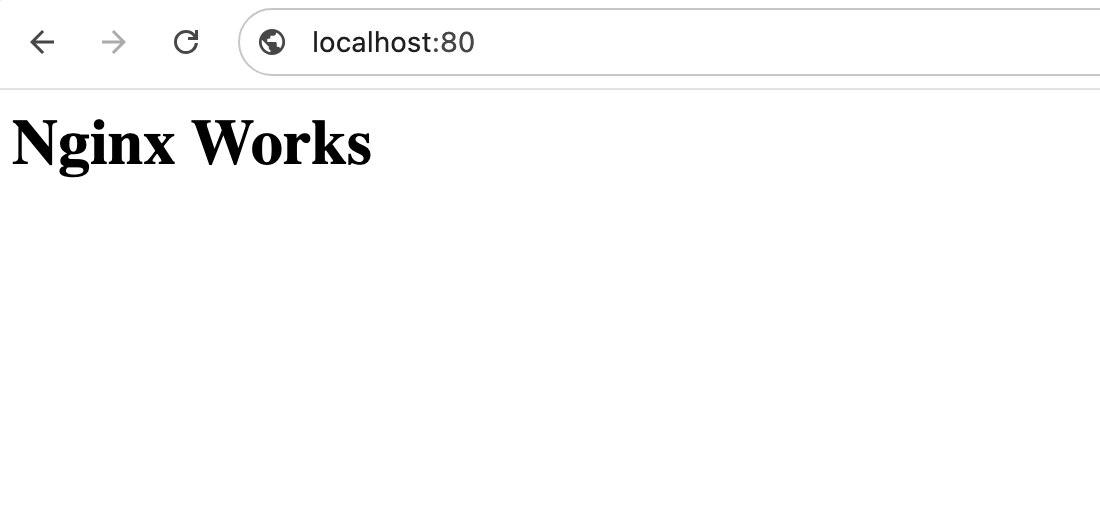
Usually port 80 is Nginx Default Port.
Nginx port refers to the network port on which the Nginx web server listens for incoming connections. When you install Nginx as a web server, it needs to listen on a specific port so browsers and other clients know where to send HTTP or HTTPS requests.
For a typical web server, Nginx listens for HTTP traffic on port 80 and HTTPS traffic on port 443. These are the standard ports associated with web traffic, although Nginx can be configured to listen on almost any available TCP port.
For example, an Nginx server can listen on port 80 with:
server {
    listen 80;
    server_name example.com;
}
It can also listen on another port such as 8080:
server {
    listen 8080;
    server_name example.com;
}
The Nginx listen directive determines the IP address and port where a server block accepts connections.
What Is the Nginx Default Port?
The Nginx default port for HTTP is port 80. If you access a website using a URL such as:
http://example.comYour browser normally connects to port 80 automatically, so you do not need to type :80.
For HTTPS, the standard port is 443:
https://example.comBrowsers automatically use port 443 for HTTPS unless a different port is explicitly specified.
Nginx itself does not have to use only ports 80 and 443. You can configure it to listen on ports such as 8080, 8000, 8081, or another available TCP port.
Nginx Port 80 vs Port 443
Port 80 and port 443 are commonly used for different types of web traffic.
| Port | Protocol | Typical Use |
|---|---|---|
| 80 | HTTP | Standard unencrypted web traffic |
| 443 | HTTPS | Encrypted web traffic using TLS |
| 8080 | HTTP | Alternative HTTP/web application port |
| 8000 | HTTP | Development and application servers |
| 8443 | HTTPS | Common alternative HTTPS port |
Using a non-standard port does not automatically make a website more secure. Security depends on factors such as proper authentication, TLS configuration, software updates, firewall rules, and application security.
How Does Nginx Listen on a Port?
Nginx uses the listen directive inside a server block to specify the port.
A simple configuration looks like this:
server {
    listen 80;
    server_name example.com;

    root /var/www/html;
}
The important part is:
listen 80;This tells Nginx to accept connections on port 80.
You can also specify an IP address:
listen 192.168.1.100:8080;Or listen on all available IPv4 addresses on port 8080:
listen 0.0.0.0:8080;Nginx also supports IPv6:
listen [::]:8080;How to Check Which Port Nginx Is Using
There are several ways to find the port currently being used by Nginx.
First, search the Nginx configuration files for listen directives:
sudo nginx -T | grep listenThis is useful because nginx -T displays the active configuration, including configuration files included by the main Nginx configuration.
You can also use:
sudo ss -ltnp | grep nginxA typical result might look similar to:
LISTEN 0 511 0.0.0.0:80 0.0.0.0:* users:(("nginx",pid=1234,fd=6))This indicates that Nginx is listening on TCP port 80.
Another useful command is:
sudo lsof -i -P -n | grep nginxWhere Is the Nginx Port Configuration Located?
The exact location depends on your operating system and how Nginx was installed. On Debian-based distributions such as Raspberry Pi OS, common configuration locations include:
/etc/nginx/nginx.conf
/etc/nginx/sites-available/
/etc/nginx/sites-enabled/
The main Nginx configuration file is normally:
/etc/nginx/nginx.confOn many Debian-based installations, individual websites are configured in files under sites-available and enabled through sites-enabled.
You can inspect the main configuration with:
sudo nano /etc/nginx/nginx.confHow to Change the Nginx Port
Changing the Nginx port is relatively straightforward, but you should always test the configuration before restarting or reloading Nginx.
For example, suppose Nginx currently uses port 80 and you want to change it to port 8080.
Step 1: Find the Current Nginx Listen Directive
Run:
sudo nginx -T | grep listenYou might see:
listen 80 default_server;
listen [::]:80 default_server;
The exact output depends on your configuration.
Step 2: Open the Nginx Server Configuration
On many Raspberry Pi OS and Debian installations, you may find the default site configuration here:
sudo nano /etc/nginx/sites-available/defaultLook for:
listen 80 default_server;
listen [::]:80 default_server;
Step 3: Change Port 80 to Port 8080
Change the configuration to:
listen 8080 default_server;
listen [::]:8080 default_server;
Save the file.
If you have multiple Nginx server blocks, check all of them. Another server block may still be listening on port 80.
Step 4: Test the Nginx Configuration
Before restarting Nginx, always test the configuration:
sudo nginx -tA successful test should report that the configuration syntax is okay and the configuration test is successful.
If there is an error, fix it before reloading or restarting Nginx.
Step 5: Reload Nginx
After the configuration test succeeds, reload Nginx:
sudo systemctl reload nginxYou can also restart Nginx:
sudo systemctl restart nginxStep 6: Verify the New Nginx Port
Check the listening ports:
sudo ss -ltnp | grep nginxYou should now see port 8080 instead of port 80.
You can also test it locally:
curl http://localhost:8080From another computer on the same network, use:
http://RASPBERRY_PI_IP:8080What Is Nginx $port?
People sometimes search for nginx $port when looking for information about Nginx ports or Nginx variables.
It is important to distinguish between an Nginx configuration directive and an Nginx variable.
listen 80; is a configuration directive that tells Nginx where to listen.
Variables in Nginx commonly begin with a dollar sign, such as:
$host
$request_uri
$server_port
$remote_addr
$scheme
If you specifically need the port associated with the server handling a request, $server_port is the relevant built-in Nginx variable rather than $port.
What Is $server_port in Nginx?
$server_port is an Nginx variable representing the port of the server that accepted the request.
For example:
$server_portThis is different from the listen directive. The listen directive configures where Nginx accepts connections, while $server_port is a request-related variable.
What Is Nginx Location?
The Nginx location directive determines how Nginx processes requests that match a particular URI.
For example:
server {
    listen 80;
    server_name example.com;

    location / {
        root /var/www/html;
    }
}
Here, location / matches requests beginning with the root URI and tells Nginx how to handle them.
You can have multiple location blocks:
server {
    listen 80;
    server_name example.com;

    location / {
        root /var/www/html;
    }

    location /images/ {
        root /var/www;
    }

    location /api/ {
        proxy_pass http://127.0.0.1:3000;
    }
}
How Nginx Port and Location Work Together
The listen directive and location directive perform different jobs.
- listen: Determines where Nginx accepts connections.
- server_name: Helps determine which server block should handle the request.
- location: Determines how a matching URI is processed inside the selected server block.
For example:
server {
    listen 8080;
    server_name example.com;

    location / {
        root /var/www/example;
    }

    location /api/ {
        proxy_pass http://127.0.0.1:3000;
    }
}
In this example, Nginx listens on port 8080. Requests to / can be served from the filesystem, while requests to /api/ can be forwarded to an application running on port 3000.
How to Install Nginx on Raspberry Pi
Installing Nginx on a Raspberry Pi is straightforward when you are running Raspberry Pi OS.
The following instructions are suitable for a typical Raspberry Pi running Raspberry Pi OS.
Step 1: Update Raspberry Pi OS
Open the Raspberry Pi terminal and update the package lists:
sudo apt updateYou can also update installed packages:
sudo apt full-upgradeStep 2: Install Nginx
Install Nginx using APT:
sudo apt install nginx -yAPT will download Nginx and its required dependencies.
Step 3: Check Nginx Status
After installation, check whether Nginx is running:
sudo systemctl status nginxYou can also use:
systemctl is-active nginxStep 4: Find Your Raspberry Pi IP Address
Run:
hostname -IYou may see an address similar to:
192.168.1.50The actual address will depend on your network.
Step 5: Open the Nginx Welcome Page
From another device connected to the same network, open:
http://192.168.1.50Replace 192.168.1.50 with the IP address of your Raspberry Pi.
Because Nginx normally listens on port 80 for HTTP, you do not need to append :80 to the URL.
If you changed Nginx to port 8080, use:
http://192.168.1.50:8080Step 6: Make Nginx Start Automatically
To ensure Nginx starts automatically when the Raspberry Pi boots, use:
sudo systemctl enable nginxCheck whether the service is enabled:
systemctl is-enabled nginxHow to Change the Nginx Port on Raspberry Pi
Changing the Nginx port on Raspberry Pi OS follows the same general process used on Debian-based Linux systems.
First, find the current configuration:
sudo nginx -T | grep listenThen edit the relevant server configuration:
sudo nano /etc/nginx/sites-available/defaultChange:
listen 80 default_server;
listen [::]:80 default_server;
to:
listen 8080 default_server;
listen [::]:8080 default_server;
Save the file and test the configuration:
sudo nginx -tIf the test succeeds, reload Nginx:
sudo systemctl reload nginxFinally, verify the port:
sudo ss -ltnp | grep nginxDo You Need to Open the New Nginx Port in the Firewall?
If a firewall is enabled, changing the Nginx port may require an additional firewall rule.
For example, if you use UFW and want to permit TCP port 8080:
sudo ufw allow 8080/tcpThen check the firewall rules:
sudo ufw statusOnly open ports that you actually need.
Why Is Nginx Not Working After Changing the Port?
Several issues can cause Nginx to stop serving traffic after a port change.
- The new port is already being used by another application.
- The Nginx configuration contains a syntax error.
- A firewall is blocking the new port.
- You changed one server block but another configuration still listens on the old port.
- You are testing the old URL without specifying the new port.
- The Nginx service was not reloaded after changing the configuration.
Start troubleshooting with:
sudo nginx -t
sudo systemctl status nginx
sudo ss -ltnp | grep nginx
To see whether another service uses port 8080:
sudo ss -ltnp | grep :8080How to Check Whether a Port Is Already in Use
Before changing Nginx to a new port, check whether that port is available.
sudo ss -ltnp | grep :8080If another service is already listening on port 8080, choose another port or reconfigure the existing service.
You can also inspect listening TCP sockets with:
sudo ss -ltnpCan Nginx Listen on Multiple Ports?
Yes. Nginx can listen on multiple ports.
For example:
server {
    listen 80;
    listen 8080;

    server_name example.com;

    root /var/www/html;
}
This configuration allows the server block to accept connections on both port 80 and port 8080, subject to the rest of the Nginx configuration and network rules.
Can I Use Nginx on Raspberry Pi for a Website?
Yes. A Raspberry Pi can run Nginx as a lightweight web server for static websites, local dashboards, development projects, reverse proxies, home-lab applications, and other services.
A common Raspberry Pi setup is:
Internet
   |
   v
Nginx :80 / :443
   |
   +---- Static website
   |
   +---- PHP application
   |
   +---- Node.js :3000
   |
   +---- Python application :8000
In this type of setup, Nginx can act as the public-facing web server while forwarding application requests to services running on other local ports.
How to Use Nginx as a Reverse Proxy on Raspberry Pi
Suppose a Node.js application is running on port 3000:
http://127.0.0.1:3000Nginx can accept requests on port 80 and forward them to that application:
server {
    listen 80;
    server_name example.com;

    location / {
        proxy_pass http://127.0.0.1:3000;
        proxy_set_header Host $host;
        proxy_set_header X-Real-IP $remote_addr;
        proxy_set_header X-Forwarded-For $proxy_add_x_forwarded_for;
        proxy_set_header X-Forwarded-Proto $scheme;
    }
}
This allows visitors to access the website using the normal HTTP or HTTPS ports without exposing the application’s internal port directly.
Common Nginx Port Commands
# Show active Nginx configuration
sudo nginx -T

# Find listen directives
sudo nginx -T | grep listen

# Test configuration
sudo nginx -t

# Check Nginx service
sudo systemctl status nginx

# Reload configuration
sudo systemctl reload nginx

# Restart Nginx
sudo systemctl restart nginx

# Show listening TCP ports
sudo ss -ltnp

# Show ports used by Nginx
sudo ss -ltnp | grep nginx
Frequently Asked Questions About Nginx Port
What Port Does Nginx Use by Default?
Nginx commonly listens on port 80 for HTTP. HTTPS commonly uses port 443. The actual configuration can be changed with the Nginx listen directive.
Is Nginx Port 80 or 8080?
The standard Nginx HTTP configuration uses port 80, but Nginx can be configured to use port 8080 or another available port. Port 8080 is often used when port 80 is already occupied or when running development and testing services.
How Do I Change the Nginx Port From 80 to 8080?
Edit the relevant Nginx server block and change the listen 80; directive to listen 8080;. Then run sudo nginx -t to test the configuration and reload Nginx with sudo systemctl reload nginx.
How Do I Check the Nginx Port?
Use:
sudo nginx -T | grep listenor:
sudo ss -ltnp | grep nginxThe first command shows configured Nginx listen directives, while the second helps show the ports on which the running Nginx process is listening.
What Is the Nginx HTTPS Port?
The standard port for HTTPS is 443. Nginx can be configured to listen for TLS/HTTPS traffic on port 443 or another port.
Can Nginx Run on Port 3000?
Yes. Nginx can listen on port 3000 if that port is available and the configuration is changed accordingly. However, port 3000 is also commonly used by development servers and applications, so check whether another process is already using it.
Can Nginx and Apache Use the Same Port?
Two different processes normally cannot bind to the same IP address and TCP port combination at the same time. If Apache is already listening on port 80, Nginx generally cannot also listen on the same address and port.
One common solution is to have Nginx listen on ports 80 and 443 and configure Apache or another application to listen on an internal port.
Why Does Nginx Say Address Already in Use?
An address already in use error usually means another process is already listening on the IP address and port that Nginx is attempting to use.
Check the port with:
sudo ss -ltnp | grep :80Replace 80 with the port reported in the error message.
How Do I Install Nginx on Raspberry Pi?
On Raspberry Pi OS, the basic installation is:
sudo apt update
sudo apt install nginx -y
Then check the service:
sudo systemctl status nginxWhat Is the Default Nginx Configuration File?
The primary Nginx configuration file on many Linux installations is:
/etc/nginx/nginx.confOn Debian-based systems, website-specific configurations are also commonly found in:
/etc/nginx/sites-available/
/etc/nginx/sites-enabled/
The exact layout can vary depending on the operating system and installation method.
What Should I Do Before Changing an Nginx Port?
Before changing a production Nginx port, identify the current configuration, check that the new port is available, consider firewall rules, edit the correct server block, test the configuration, and then reload Nginx.
A useful workflow is:
sudo nginx -T | grep listen
sudo ss -ltnp | grep :8080
sudo nginx -t
sudo systemctl reload nginx
sudo ss -ltnp | grep nginx
Official Nginx and Raspberry Pi Resources
- Nginx HTTP Core Module Documentation — includes the
listendirective and related configuration options.
Conclusion
Understanding the Nginx port is essential when setting up a web server, reverse proxy, or Raspberry Pi web application. The typical Nginx HTTP port is 80, while HTTPS commonly uses 443. However, Nginx can listen on other ports such as 8080 or 8000 by changing the listen directive.
On Raspberry Pi OS, Nginx can be installed with APT using sudo apt install nginx. After installation, you can check the active port with nginx -T or ss, modify the appropriate server configuration, test the configuration with nginx -t, and reload Nginx.
When troubleshooting Nginx ports, always check three things first: the Nginx configuration, whether another service is using the port, and whether the firewall allows the connection. This simple checklist resolves many common Nginx port problems.
You want to know about proxmox port ? We have an article on Proxmox Port visit Proxmox Default Port